Creating New Parent Entities
Prior to creating new entities, you must determine which schema tables will be applied. Pilgrim provides default run time tables, or you can upload your own run time tables using Pilgrim's Schema Generator. Please contact your Pilgrim Representative more information if you will be using your own run time tables. Also, you may not see the New option once you have accessed Entity Designer which could be for one of the following reasons:
- Your User must be assigned the SSE_CREATE Right.
- You must purchase Pilgrim's SmartSolve Studio Designer Professional application in order to be able to create new Entities.
- From the Administrator Tools tab on the SmartSolve Portal Page, click Designer > Entity Designer.
- From the top menu, select Entity > New.
Result: The Create New Entity window is displayed.
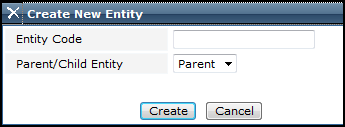
- Enter a new entity code, this is typically a shortened version of the name of the new application you are developing (i.e., RMA, NC, CAPA, CAR, etc.).
- Click the drop down button and select Parent.
- Select whether or not you will use a generic table.
| Option | Steps |
|---|---|
|
No |
If you are not using a generic table, then the entity must be mapped to a specialized table. A table must be created in the database and the schema generated for that table using the Schema Generator. Please contact your Pilgrim Representative for more information:
|
|
Yes |
|
See Also